Scenario: You want to play a flute with the client but you don’t have a flute. However, you do have an iPad on you with GarageBand installed. You open GarageBand choose flute and give the iPad to client but very quickly, the client has quit the app accidentally and is now looking through your iPad.
What can you do to prevent this?
Use Guided Access – a built-in accessibility feature on iOS devices that allows you to make only a part of the screen responsive. Setting it up is quick and easy, and this feature can come in very useful when a client is using iPad in a session.
Setting up Guided Access
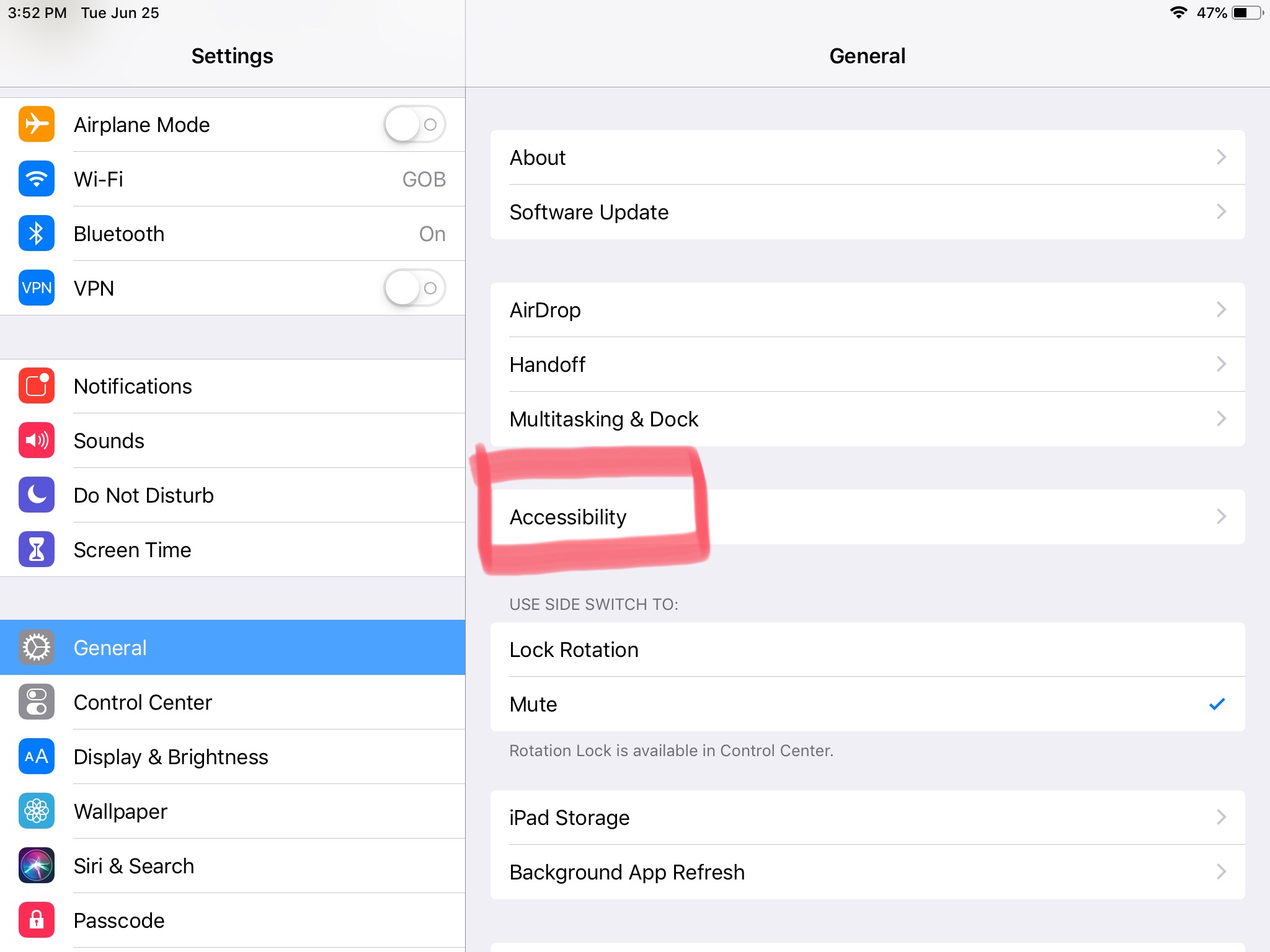
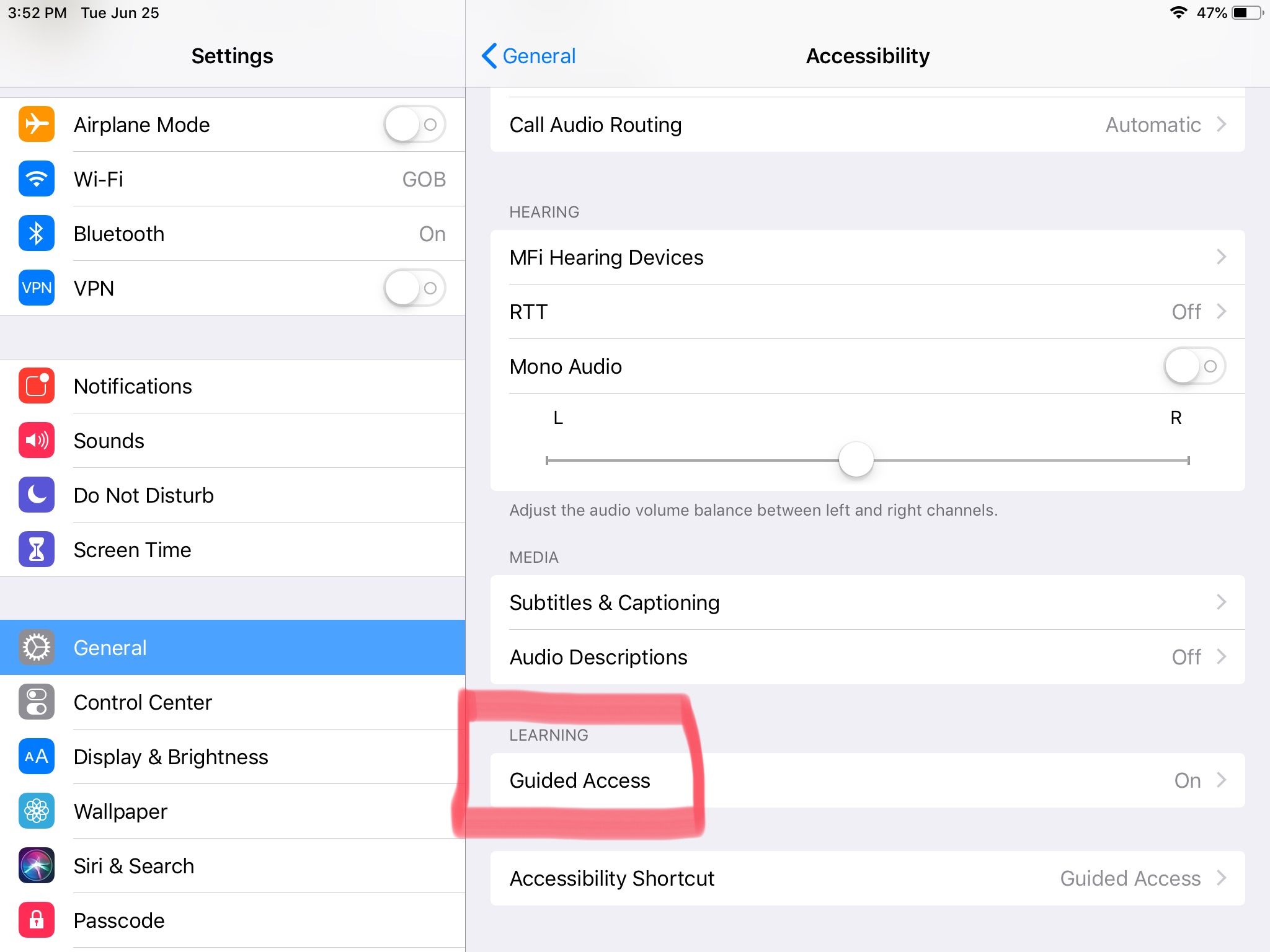
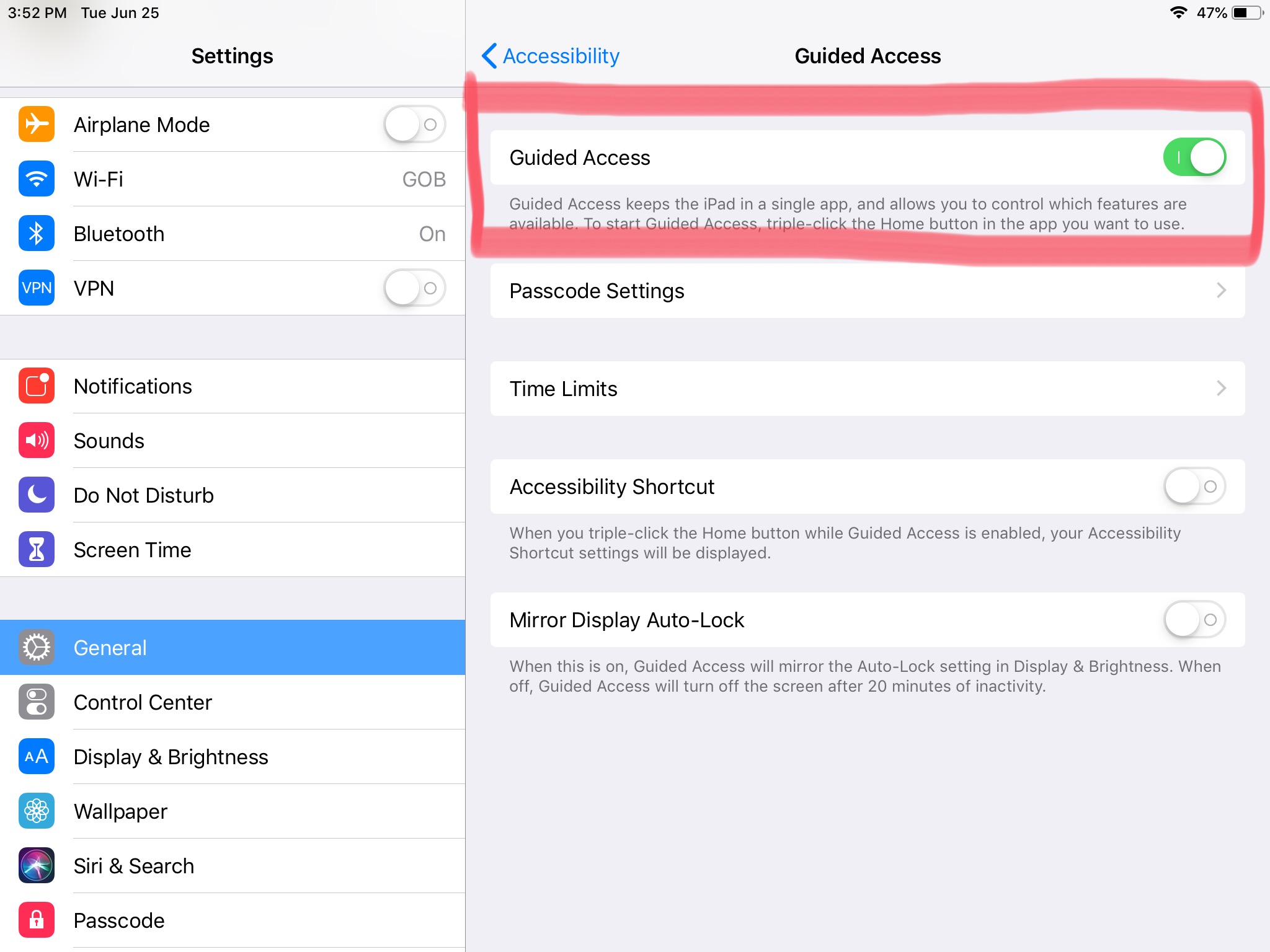
Navigate to Settings > General > Accessibility > Guided Access and make sure that Guided Access is enabled.
Using Guided Access
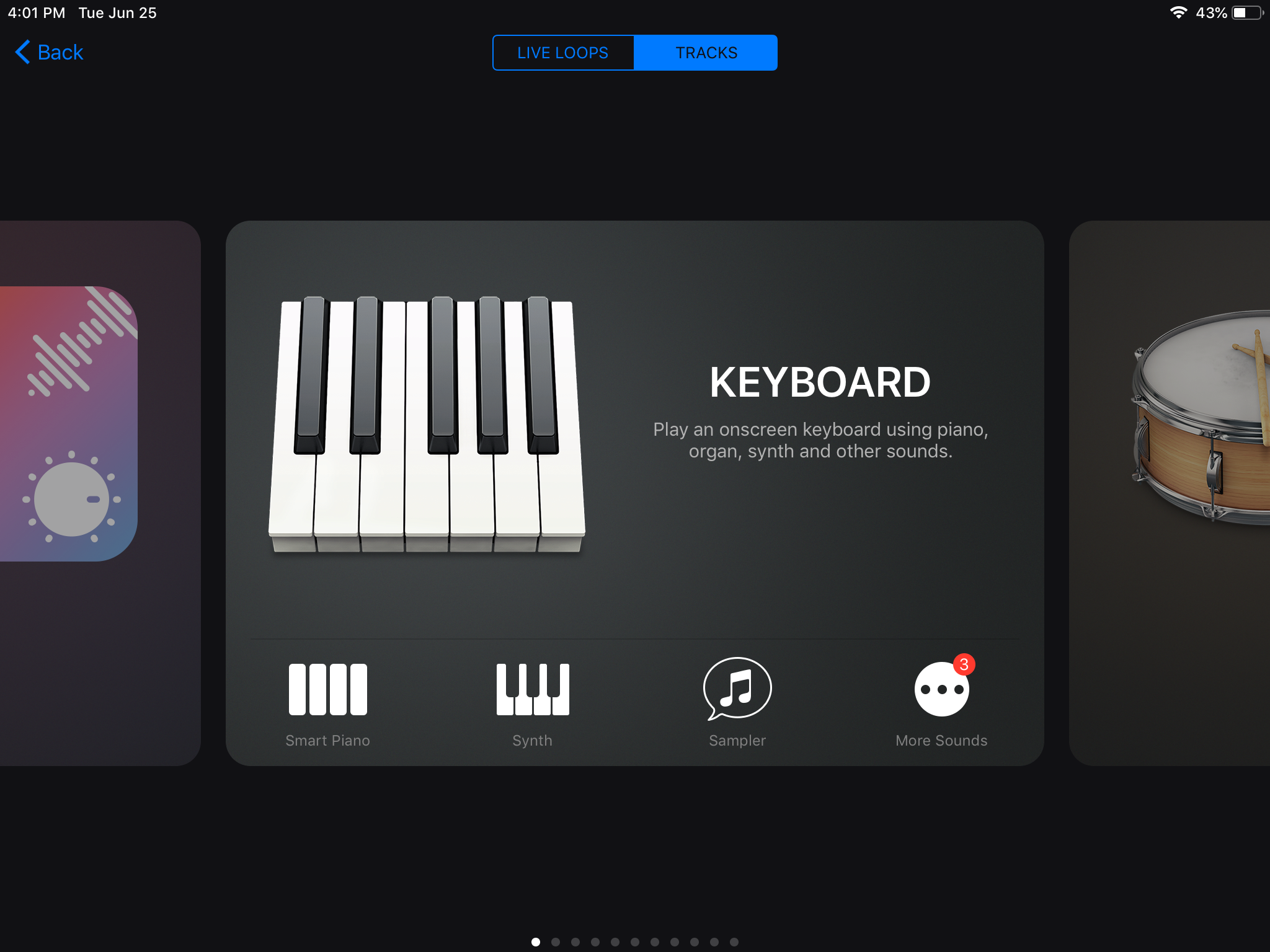
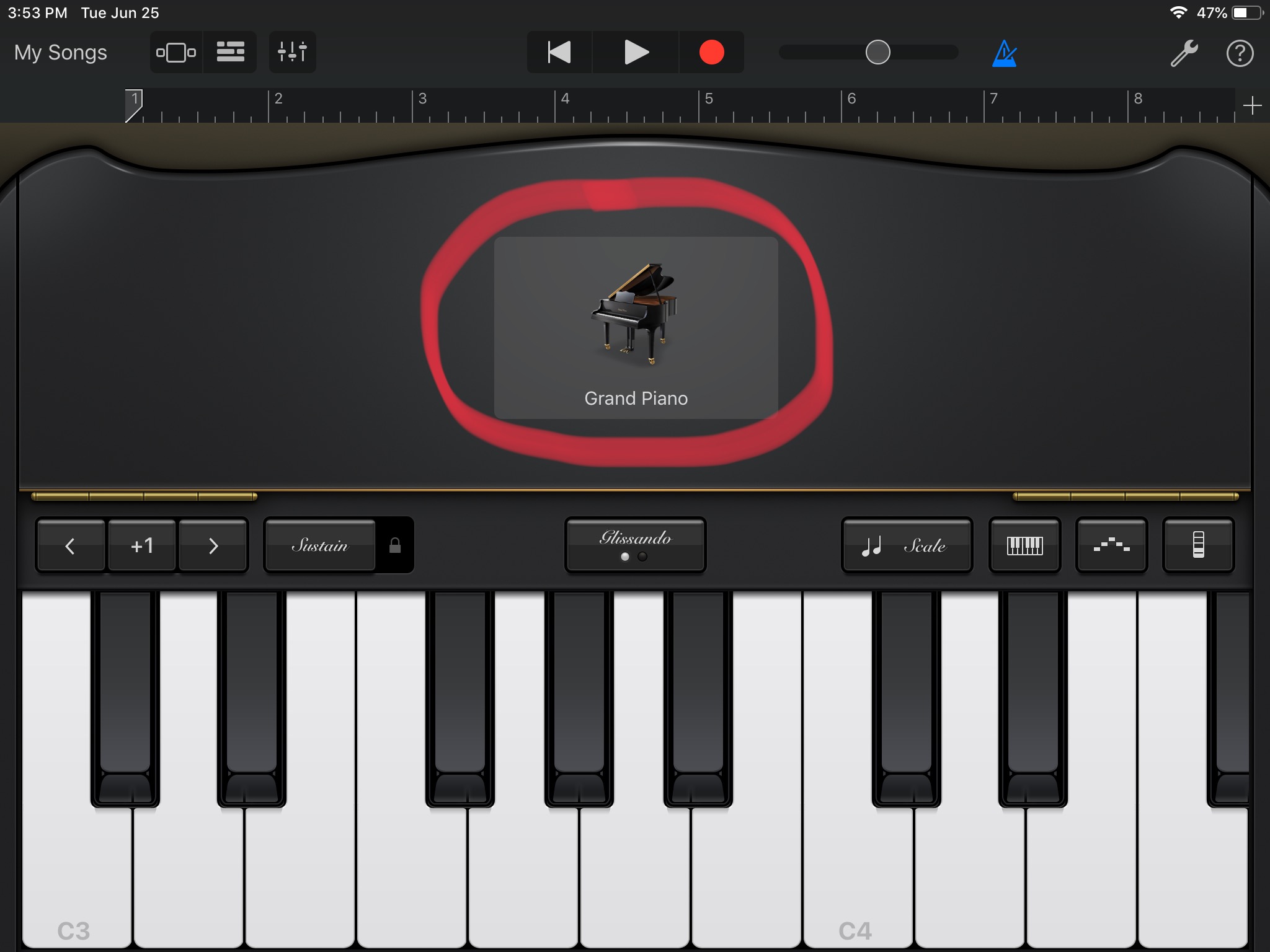
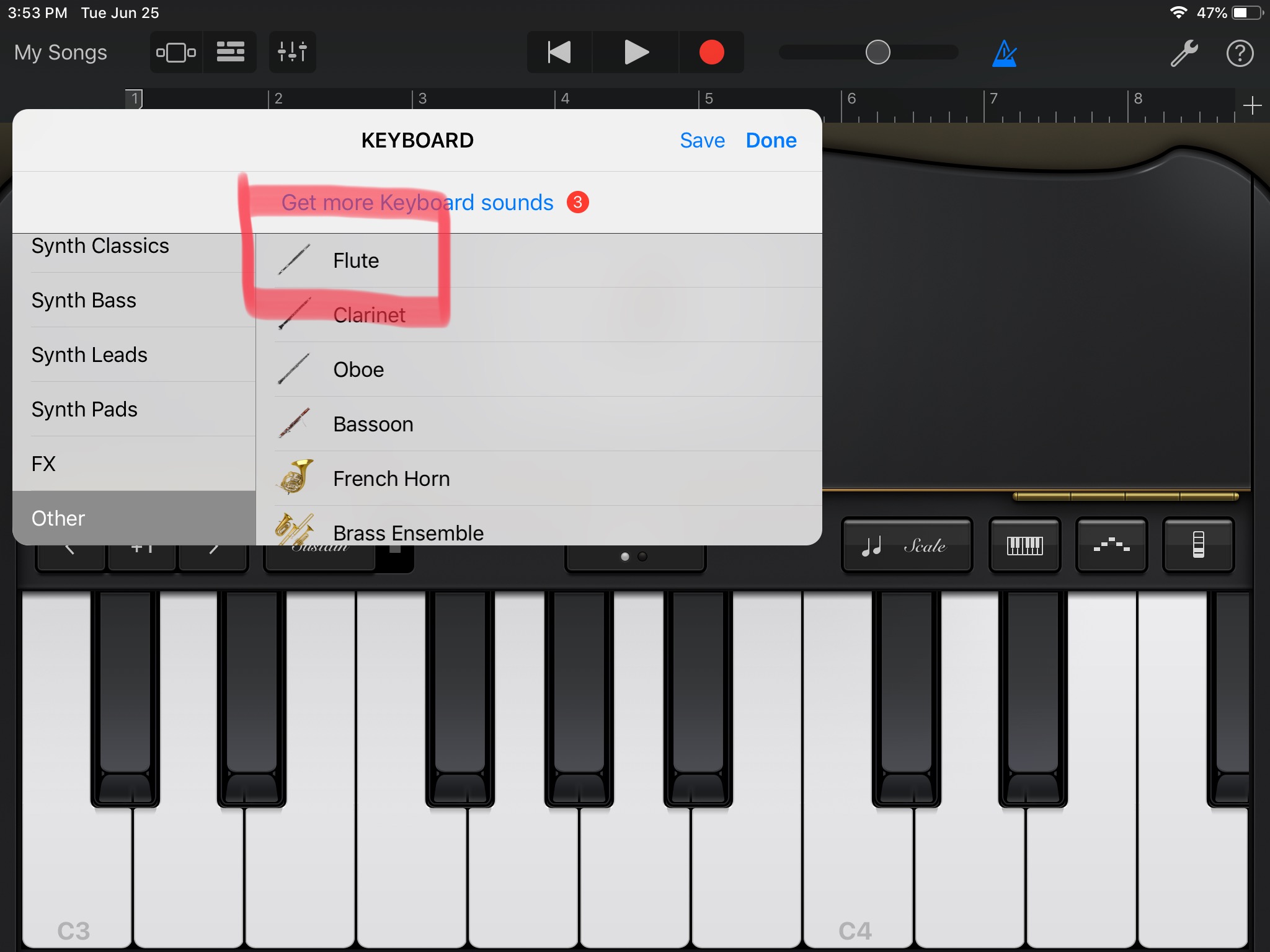
Open GarageBand and set up the virtual instrument. Once you set everything up press the Home Button three times. Mark the area you want to restrict and tap start in the top right corner. You can circle/mark as many areas as you want; it doesn’t have to be just a big block.
You will be prompted to set a passcode for Guided Access (it can be the same as the iPad passcode). You will need this passcode to make changes to or end Guided Access.
Ending or making changes to Guided Access
Press Home Button three times and type in the passcode. You can make changes to what you want to restrict and resume guided access or end it.
 techInMusicTherapy