Offering different choices for clients can sometimes be tricky, especially if the choices are presented one by one and not at once. Often times, the client just goes for the first choice because it was presented first. You can easily create a choice board, using an iPad and Keynote app. The advantage of having the choice board on iPad is that you can easily make changes and you can even use camera to take a picture on the spot. Moreover, you can add audio feedback of client’s choice.
Let’s start:
Add all the pictures (choices) on the first slide
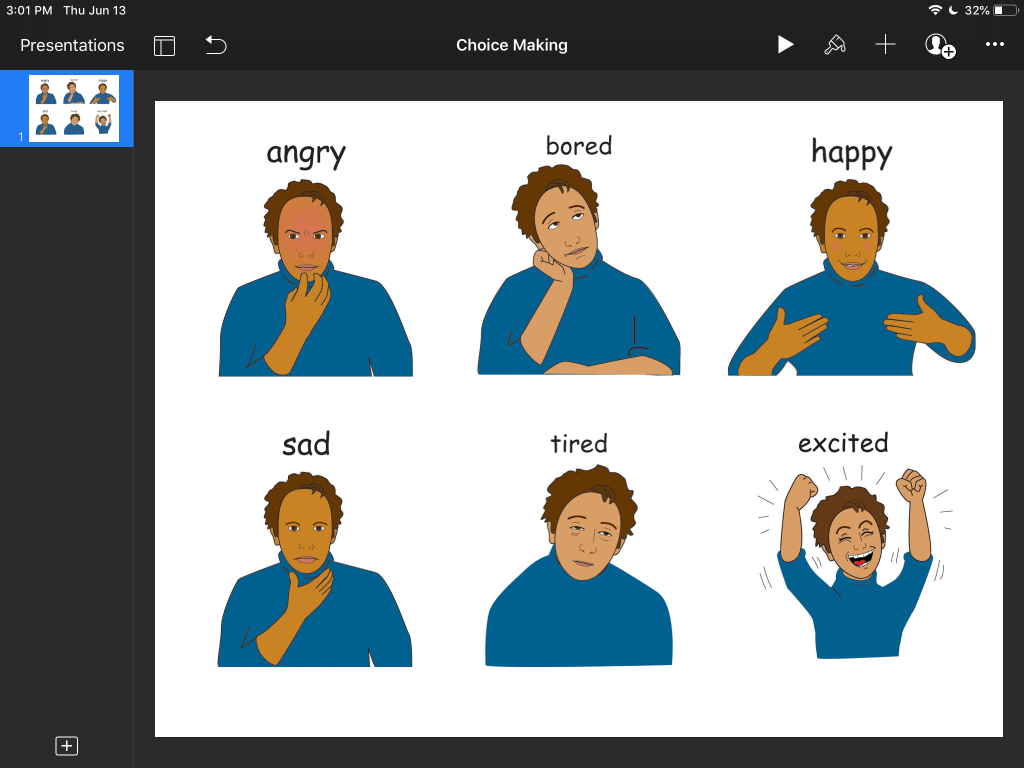
Our first slide will be our “home” slide. In this case, I will add 6 pictures but you can add only 2 or as many as you like.
Add single pictures to new slides (Optional: resize them to cover whole slide)
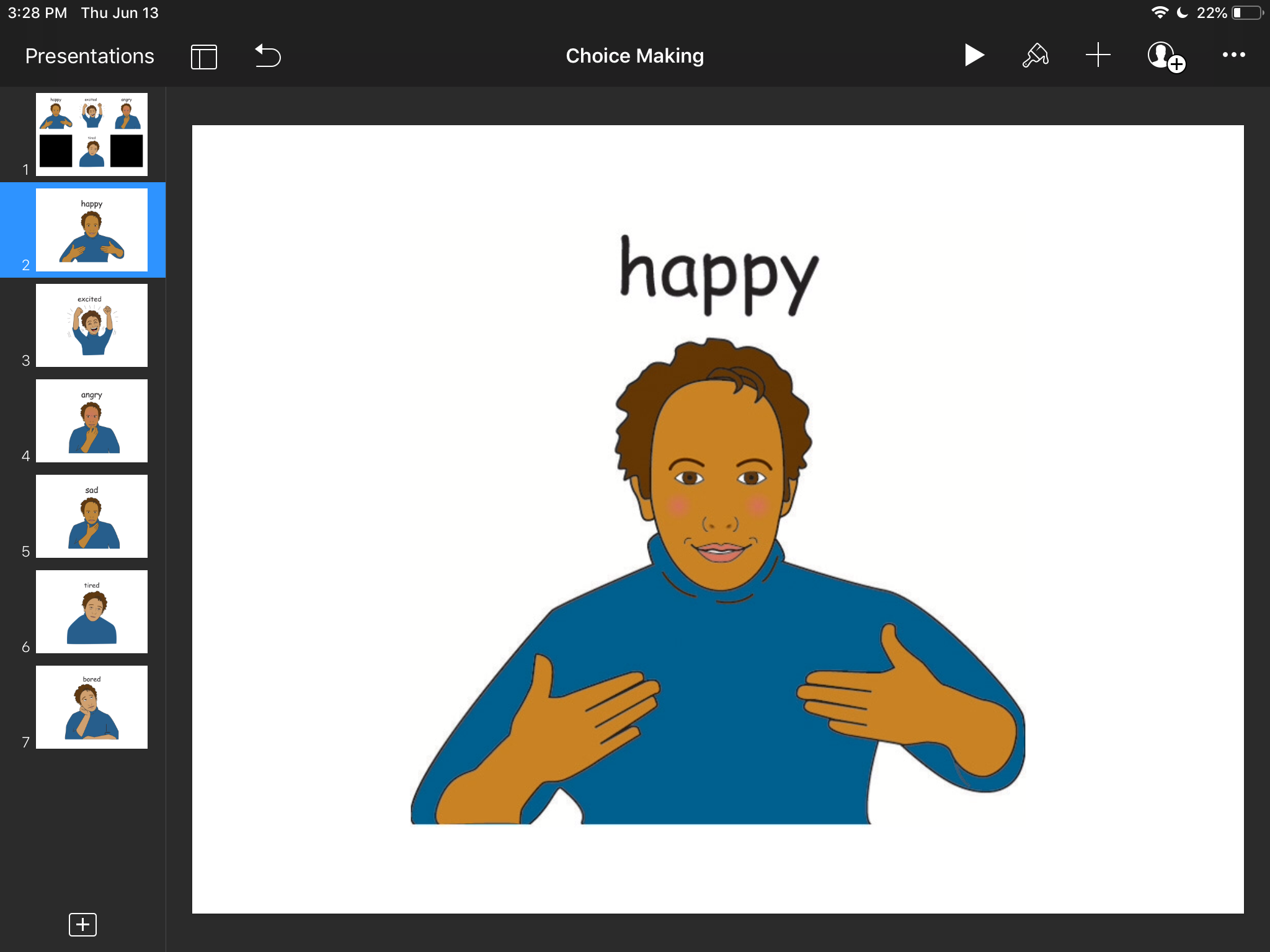
This will be our “landing” pages and will serve as a feedback on what the client choose.
Link photos from the first slide to the respective slides
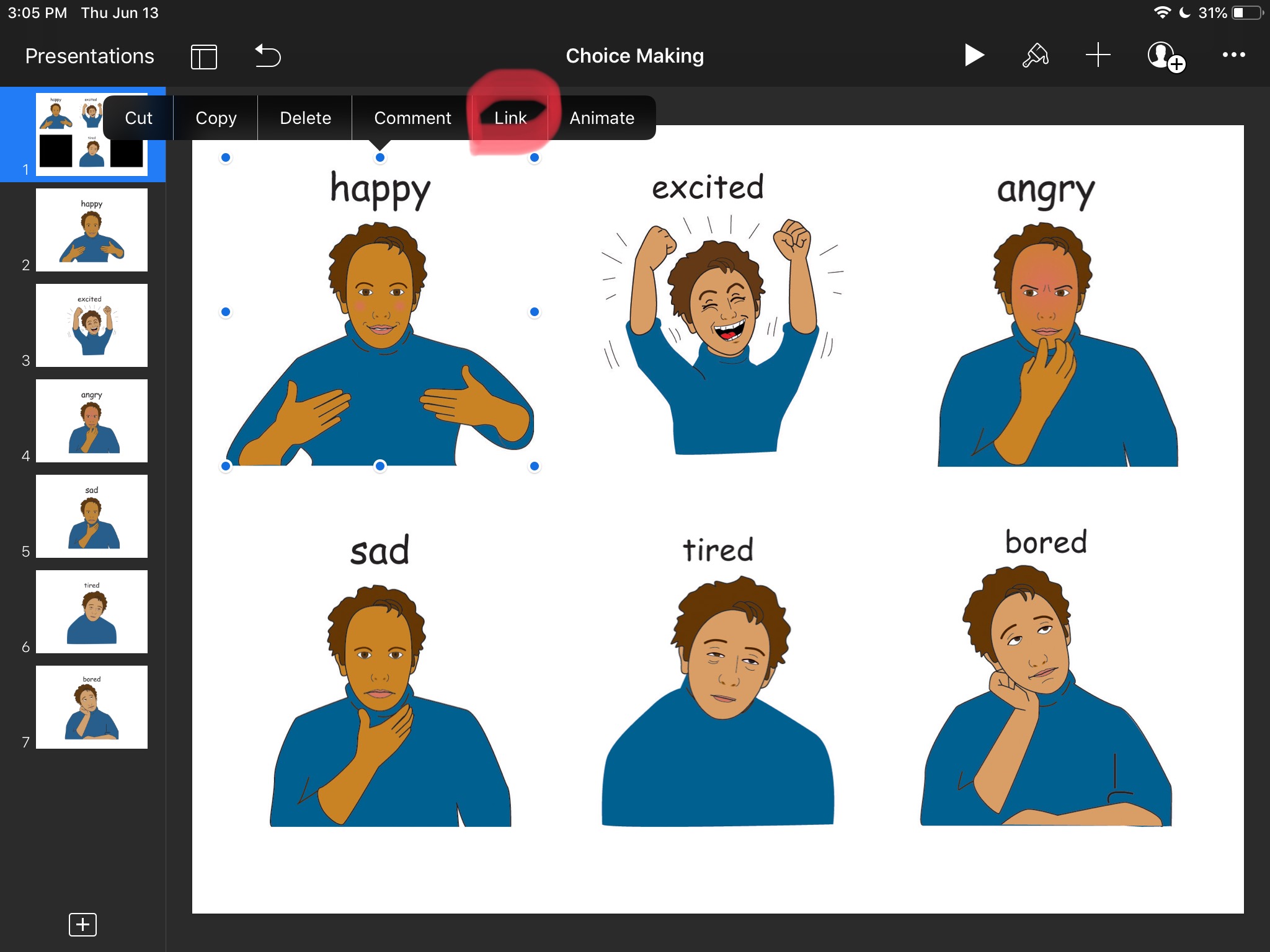
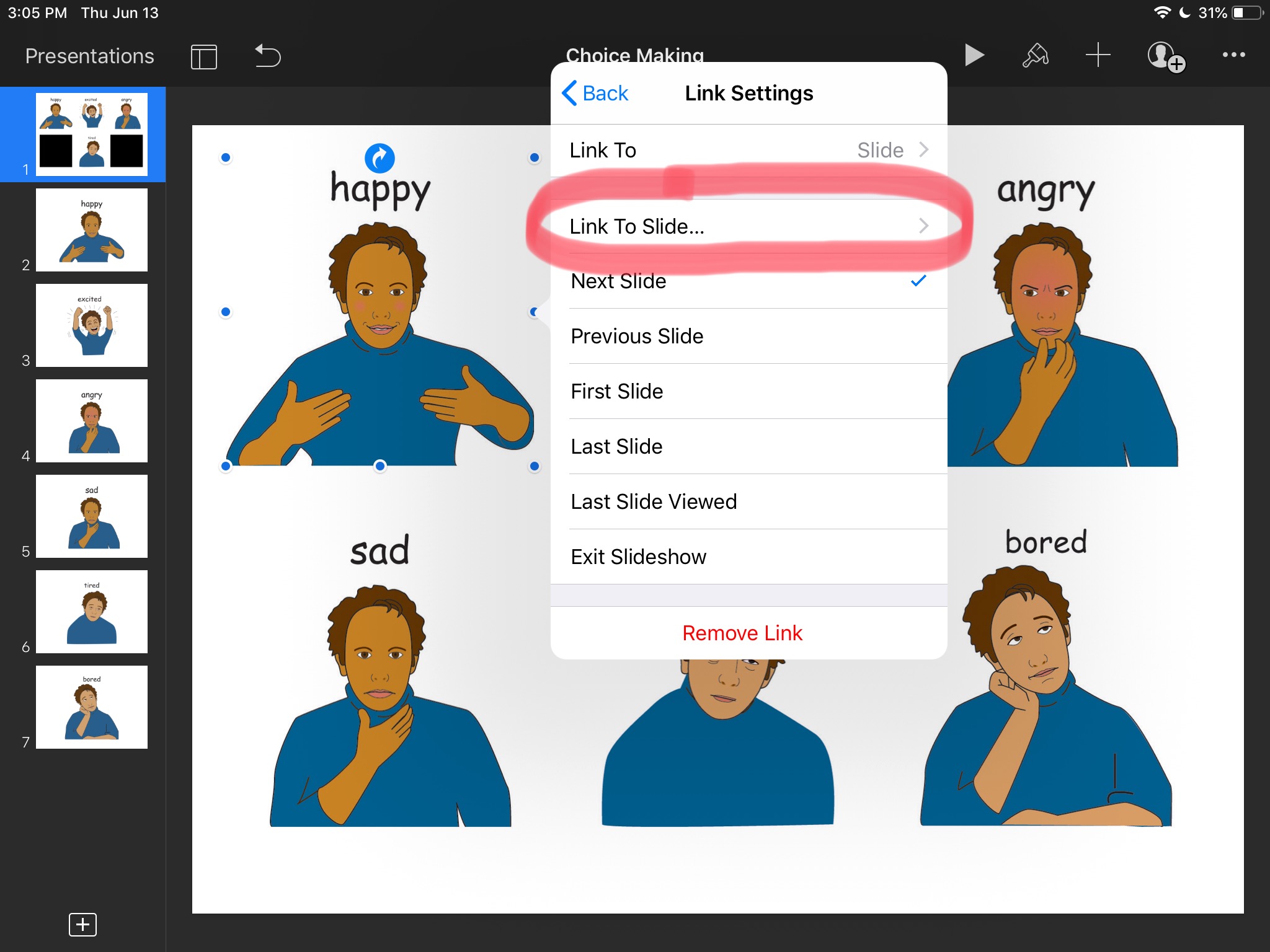
Let’s go back to the first slide and tap on a picture. Wait until options menu shows up, tap Link, then Link To Slide… and choose the correct slide number. Repeat the process for the other choices.
Duplicate the first (home) slide after each of the single photo slides
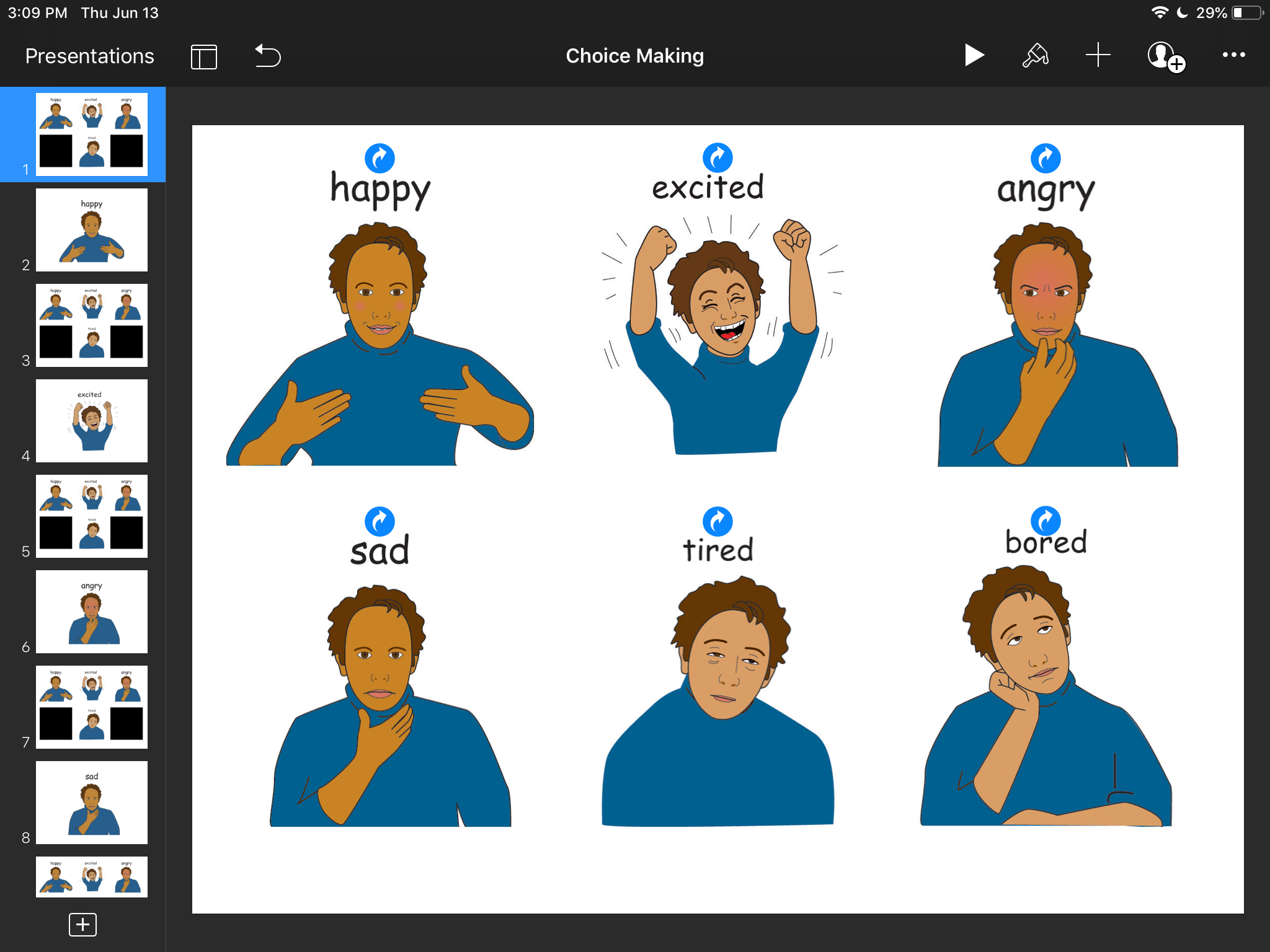
Tap the first slide on the side and choose Copy from the menu that pops up. Tap on every “landing” slide and choose Paste. We just created an endless loop by doing this.
Add audio feedback
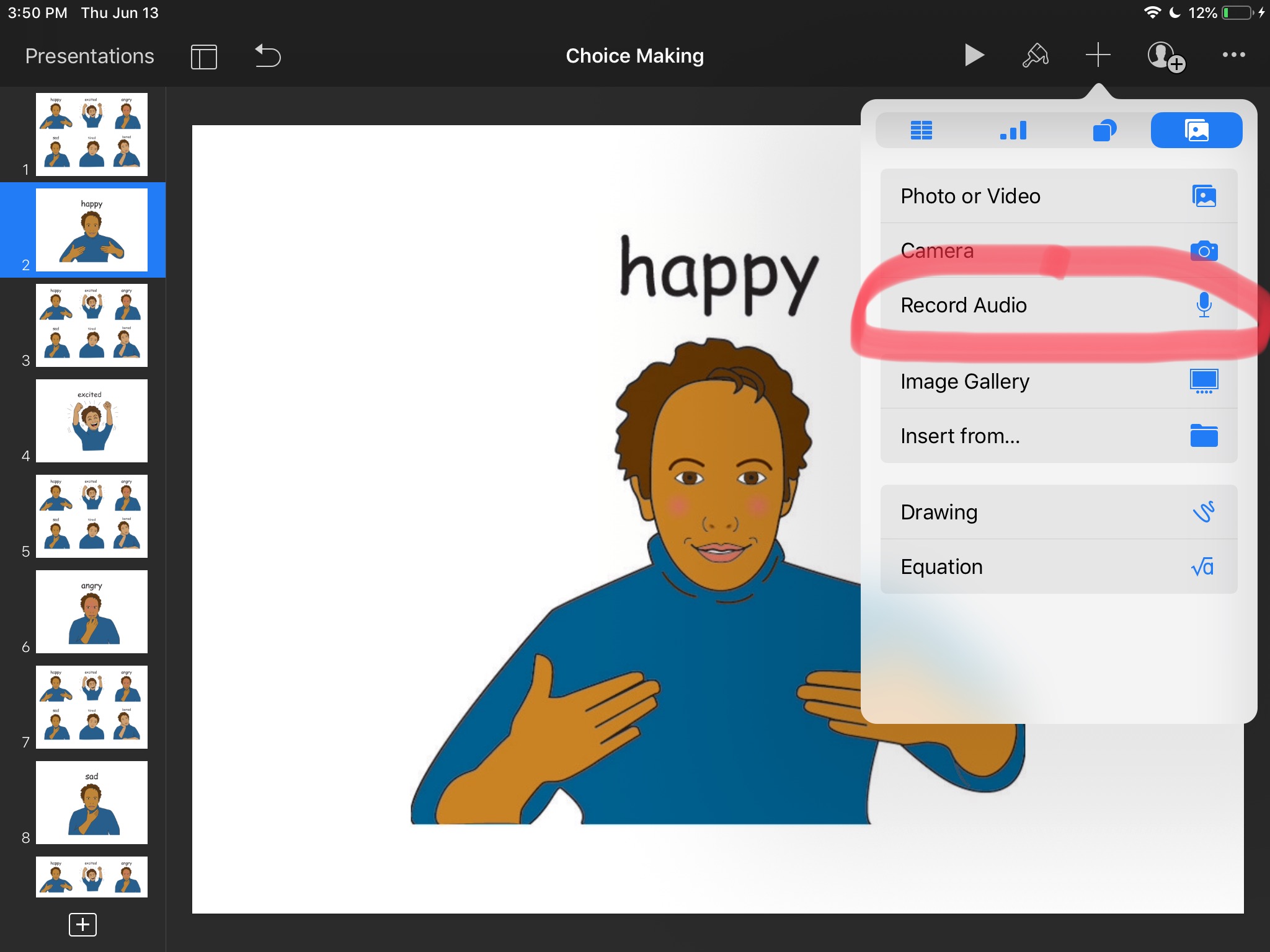
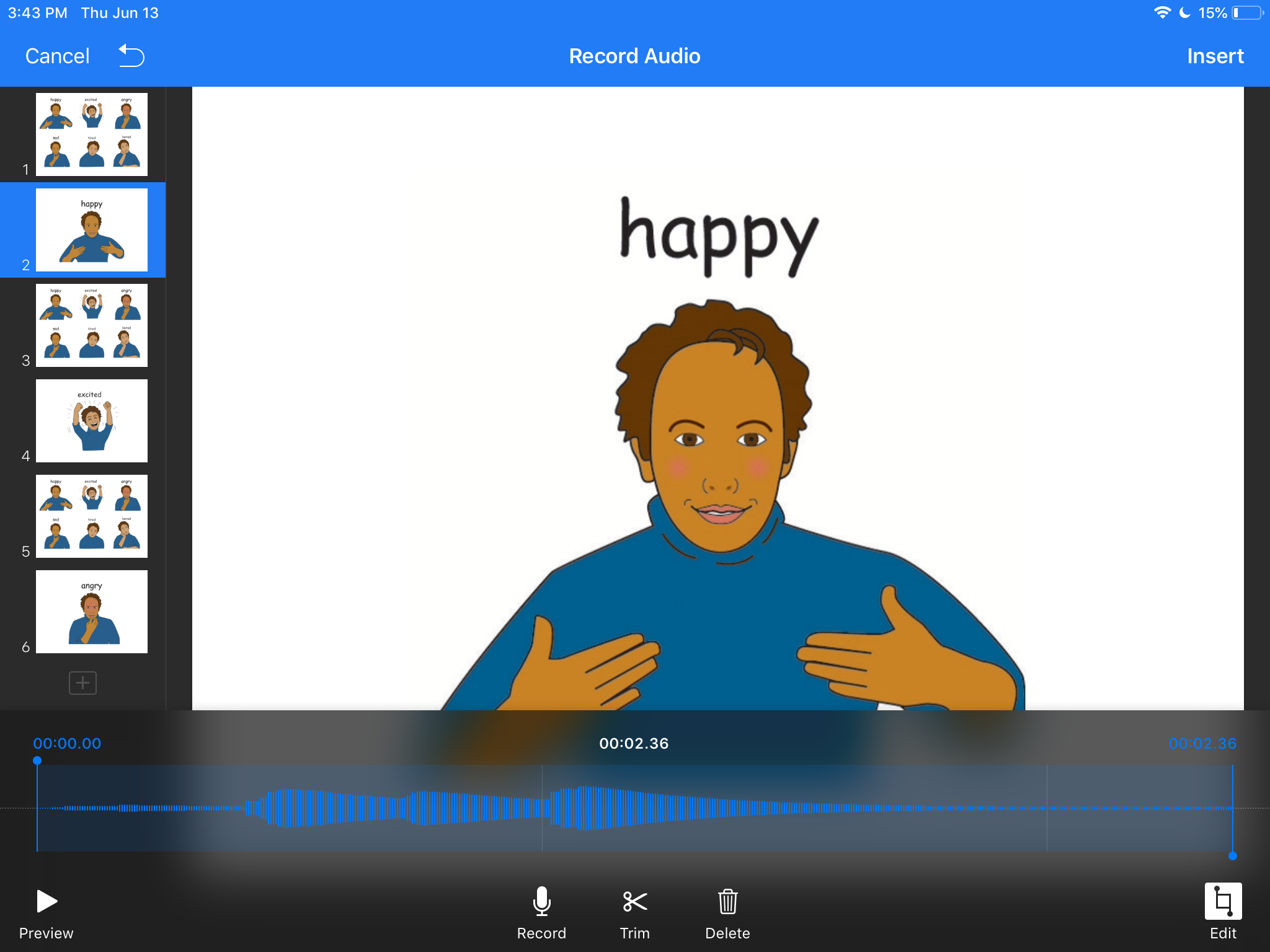
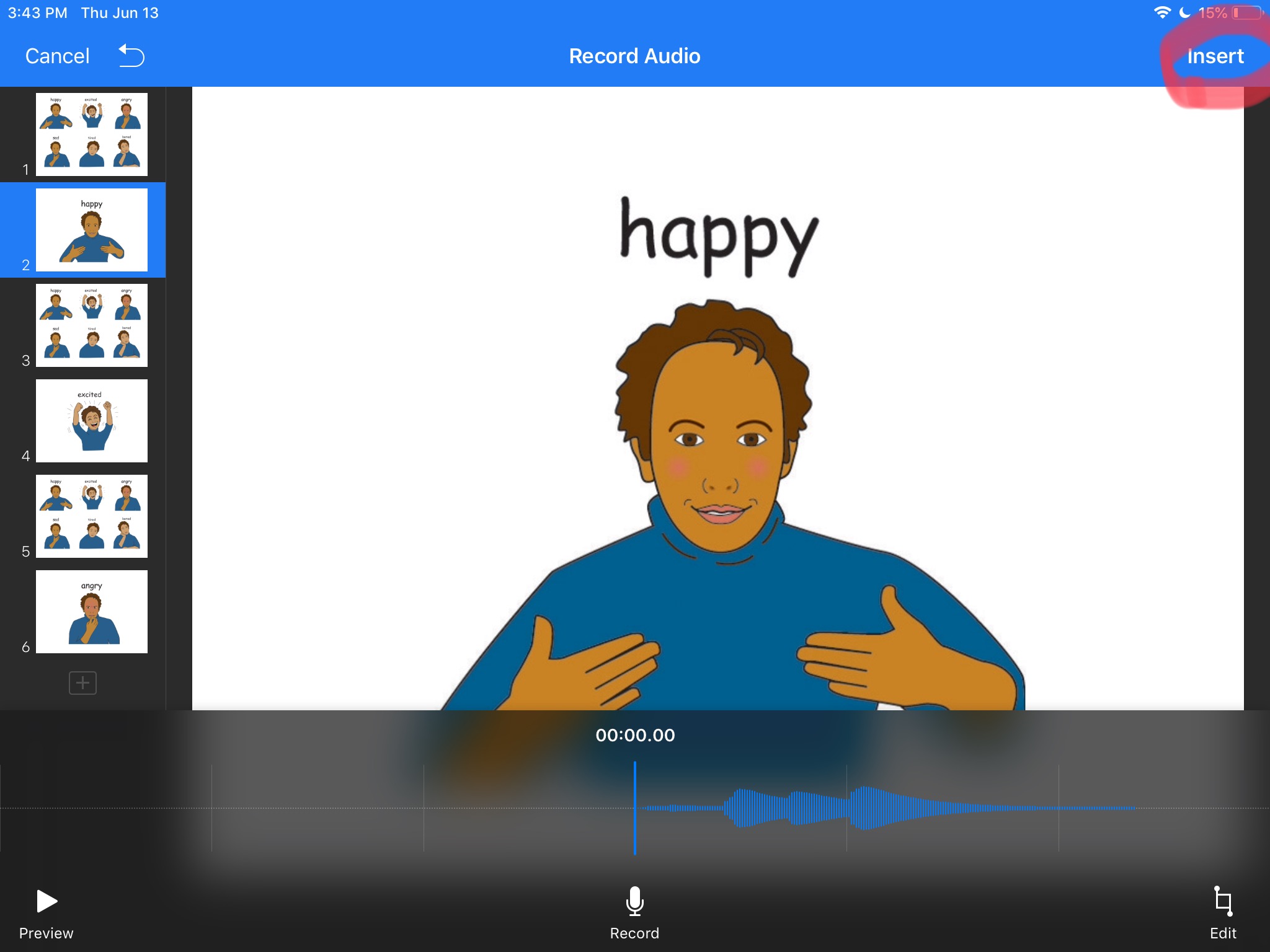
Go to a landing slide and tap the + (Add button) in the top right corner – choose Record Audio. Record audio and edit/trim it if needed. Once you’re satisfied Insert the audio.
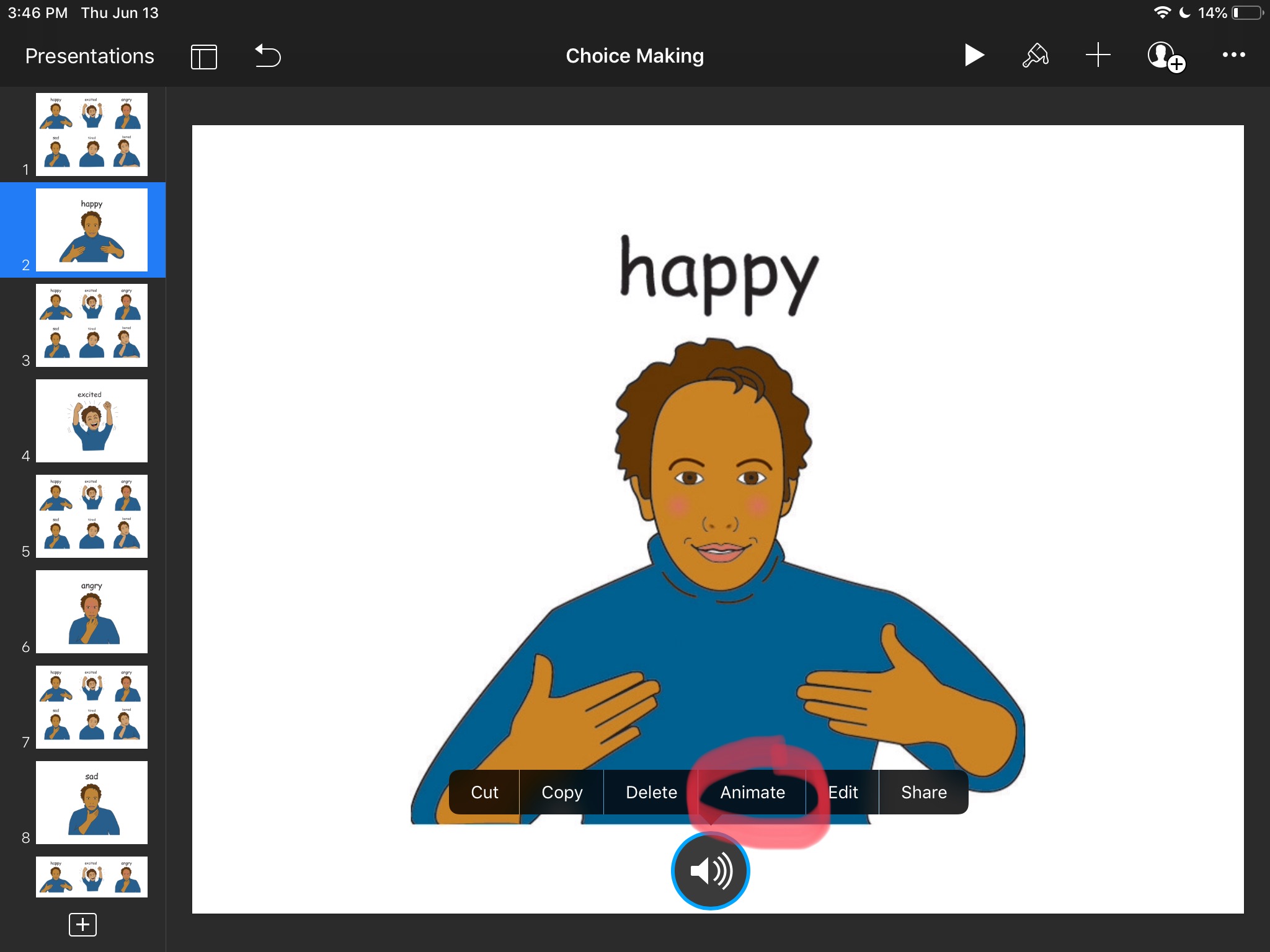
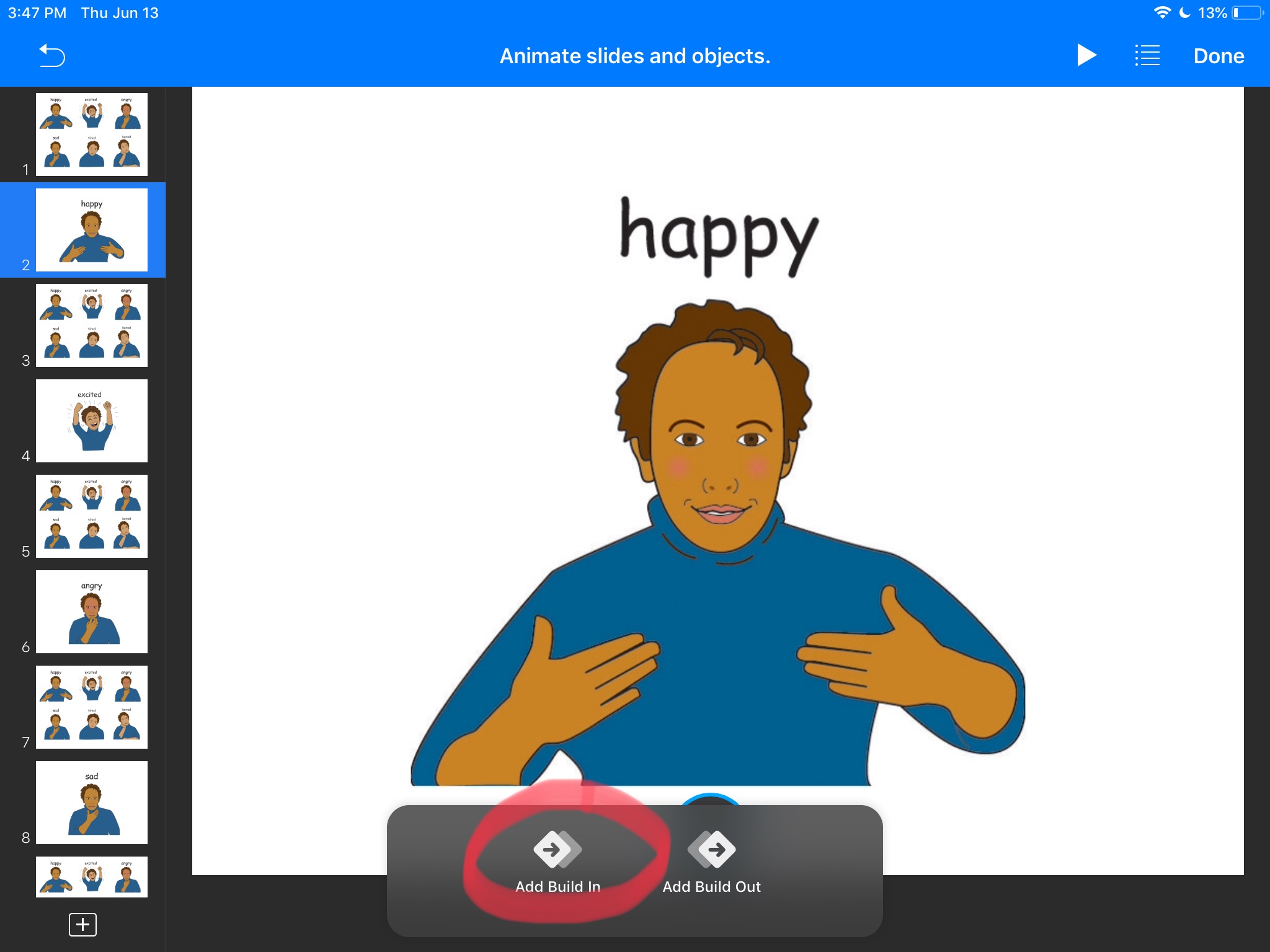
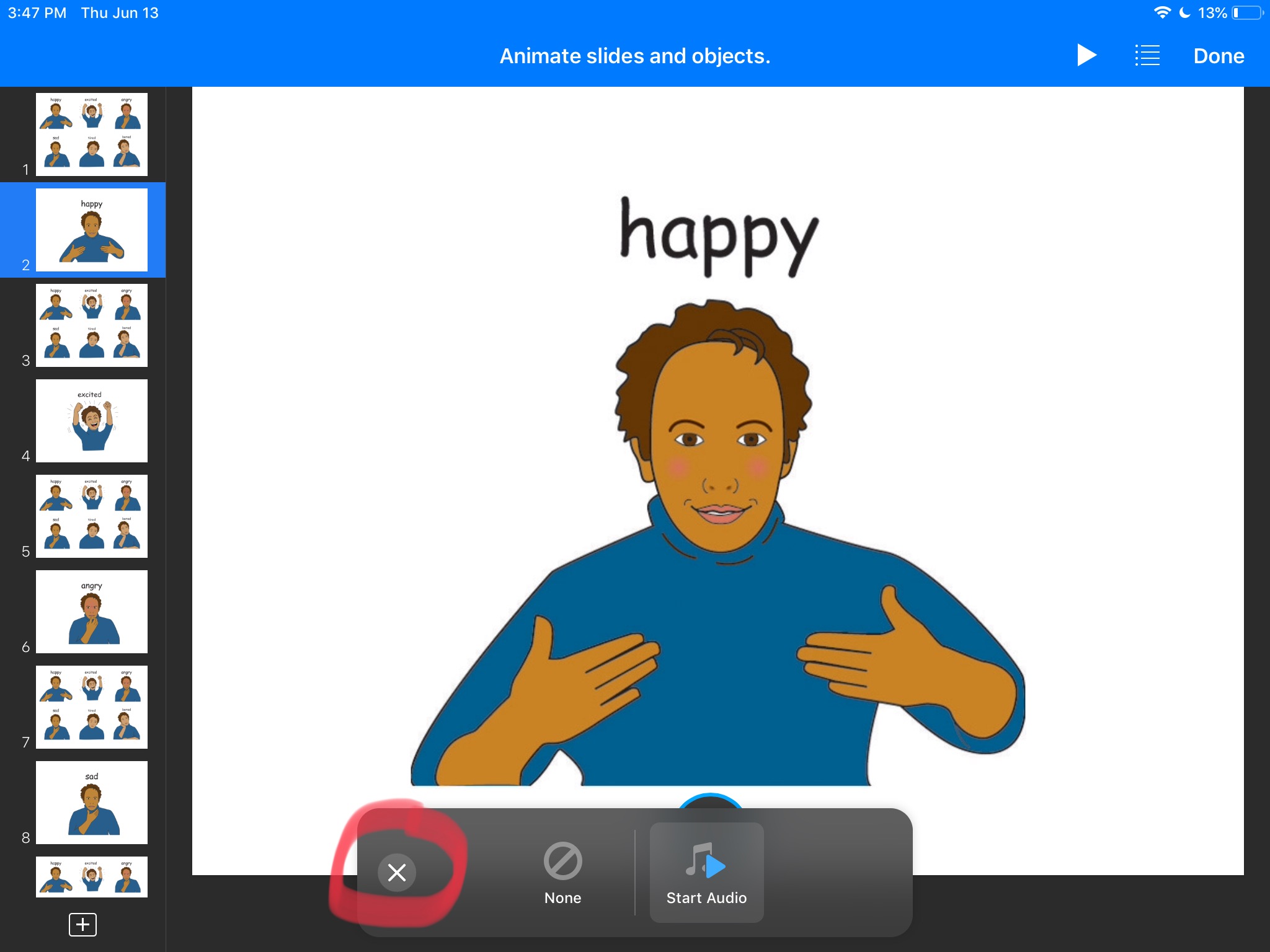
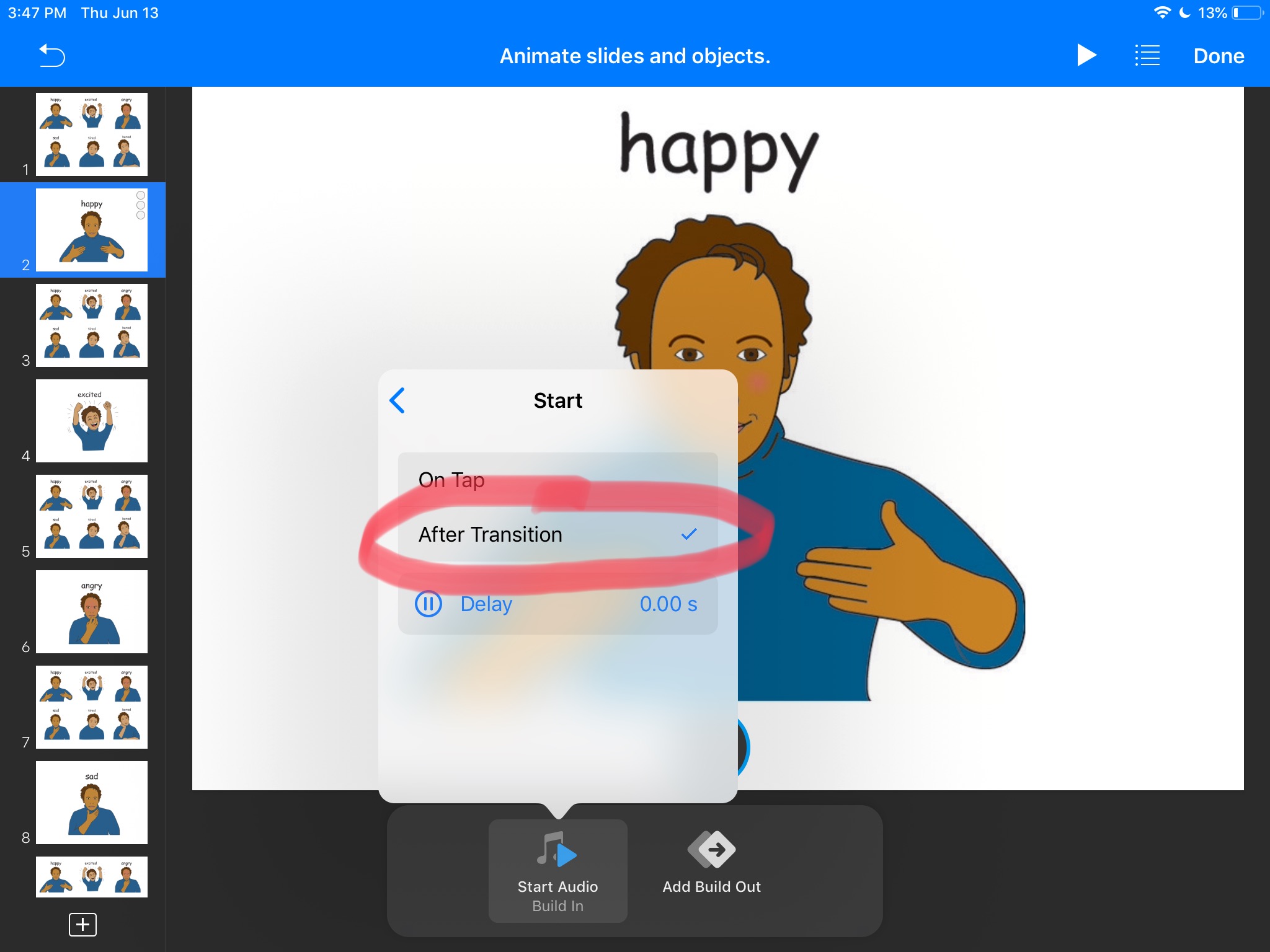
In order to make it play as the slide appears, we have to “animate” it. To do so, tap the audio icon and wait for the menu to pop-up. Once you see the menu, tap Animate. Tap Add Build In and choose Start Audio. Now tap the X sign to the left. Tap Start Audio and set Start to After Transition. Here you can also make the start of the audio delayed if you want to. Make sure to click Done in the top right to confirm the changes. Our landing slides will also give us audio feedback when they open.
Presentation Mode
Now, to run this as an “app” just start the presentation by tapping Play button in the top right. Tap on any of the pictures to make a choice and once on a “landing” slide, tap anywhere to return to “home” slide.
You can use other apps such as Google Slides or PowerPoint, just be aware that Google Slides will not allow “presentation mode” if you are not connected to the Internet.
 techInMusicTherapy